

Subscriber Searches
Segment your Subscribers using Filters and download Subscriber Lists.
Finding your subscribers
Segmenting your subscription base allows you to identify specific customers for any reporting, marketing or campaign-related activity. You can download your Subscribers into CSV files and even save common searches to run regularly.
Filters
Filters
On the Segmentation screen you'll be presented an option to begin filtering.
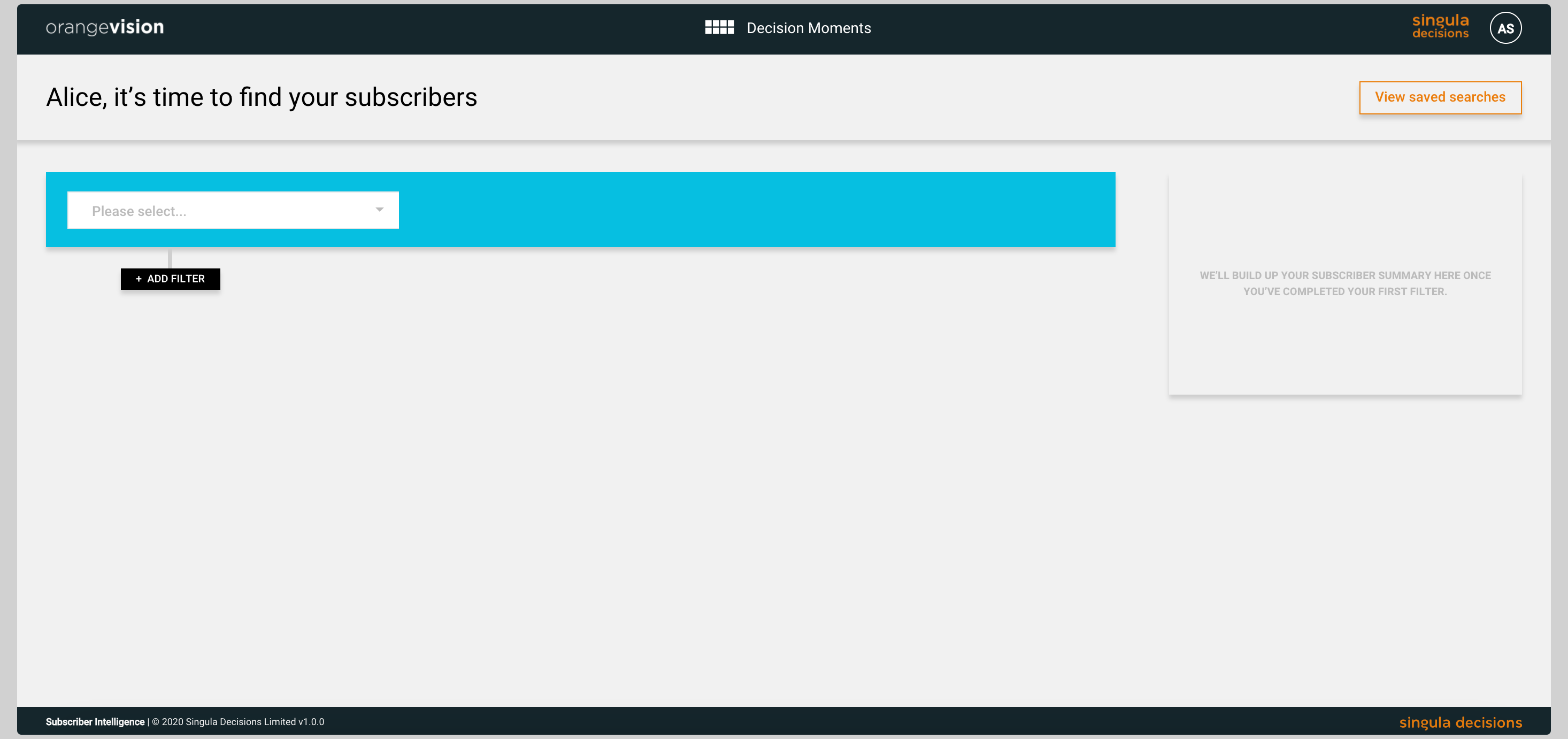
...
To start filtering, simply select the drop down box and choose your first filter.
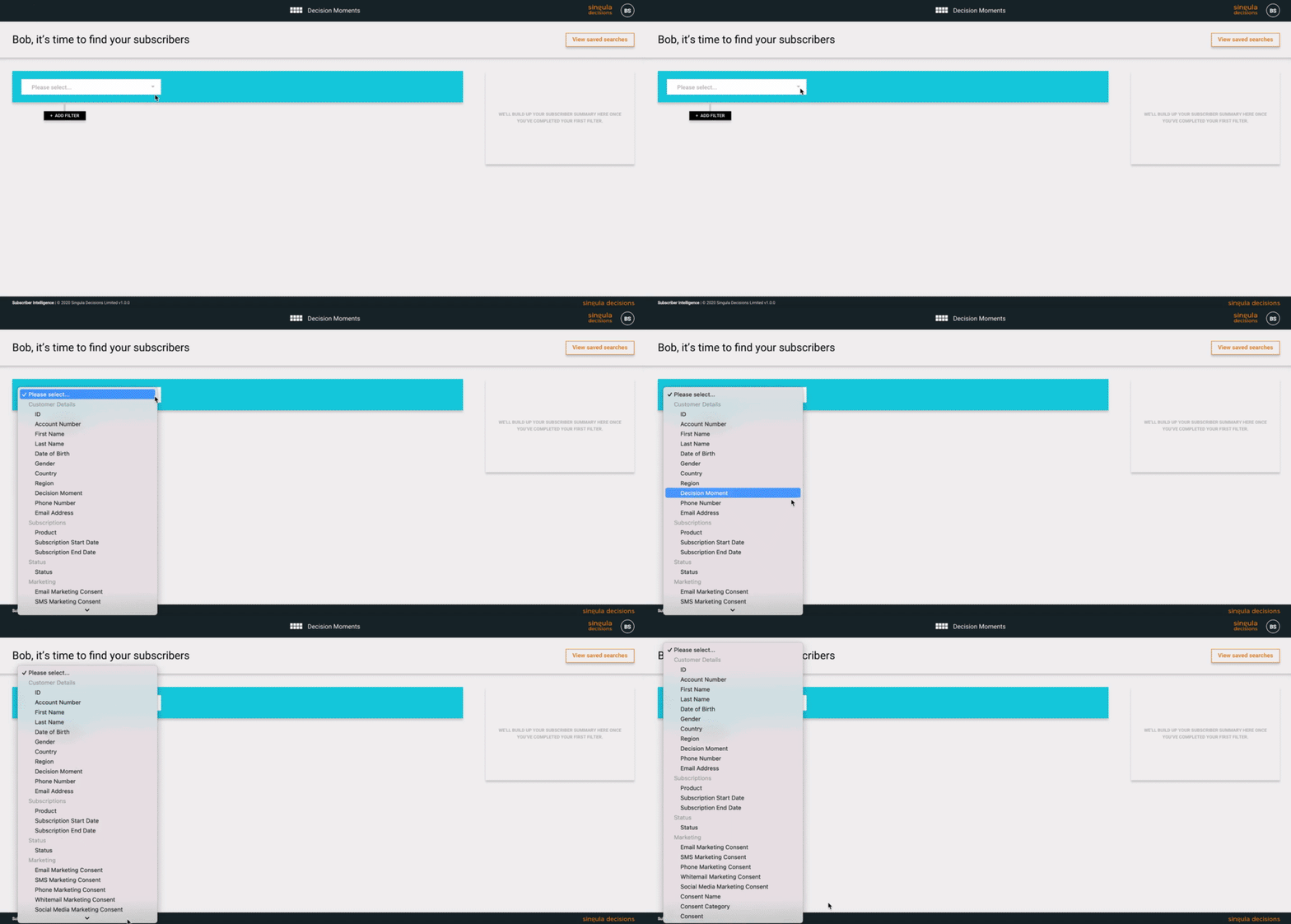
...
The filters you'll see are pulled directly from the customer data you feed into Singula® Subscriber Intelligence. So the more data you have for a customer the more filters will appear.
You'll find the definitions of all of these filters in the Filter Descriptions section of this article.
The Filters are categorised into:

- Customer Details
- Subscriptions
- Status
- Marketing
These may vary depending on the data you are feeding into the Singula Decisions Data Pipeline.
Any filters you see within each of these sections are directly pulled from the data you put in. This means that you won't see any filters that are not relevant to your customer base.
What are the options for filtering?
By date:
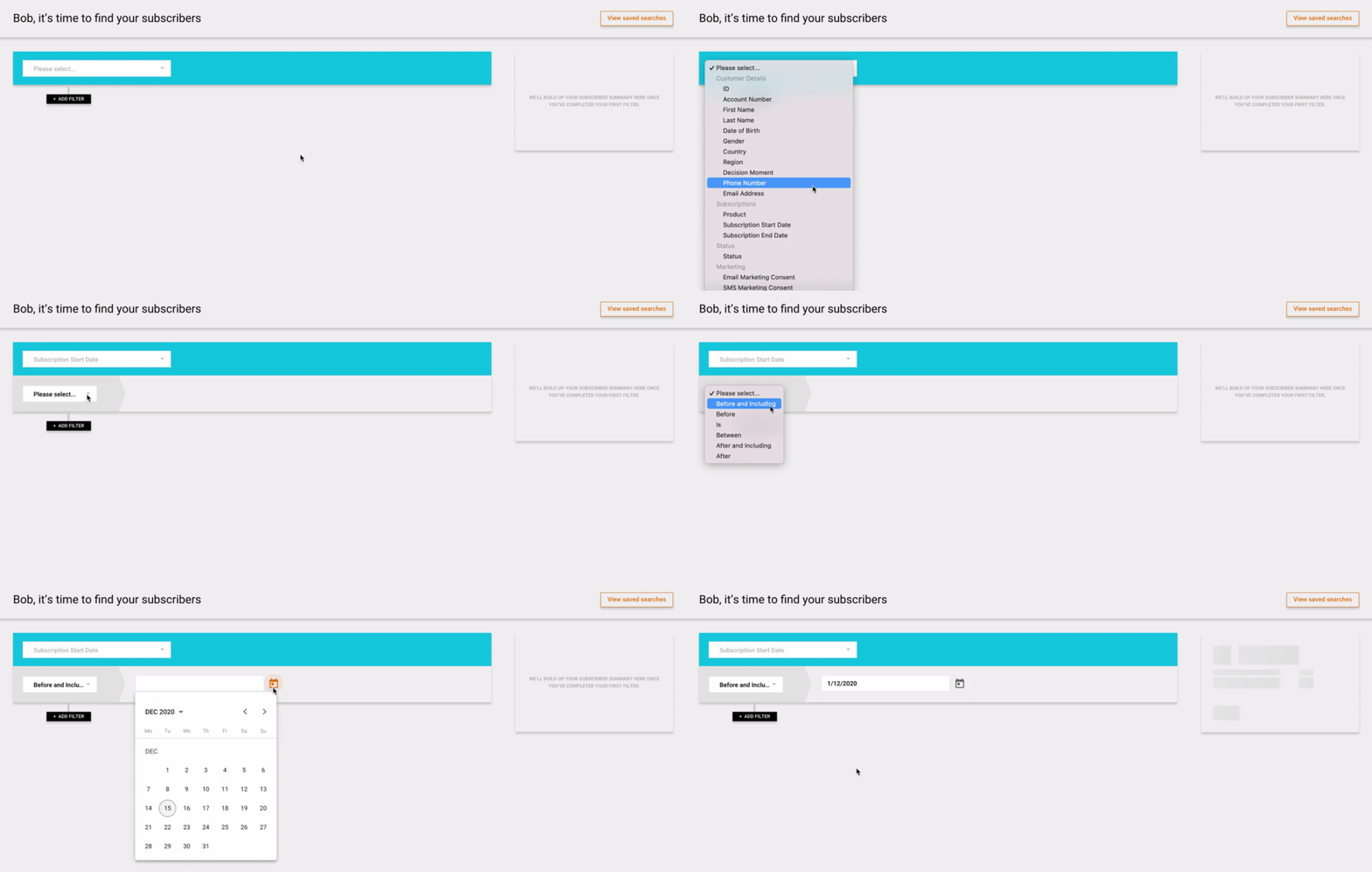
...
By list:
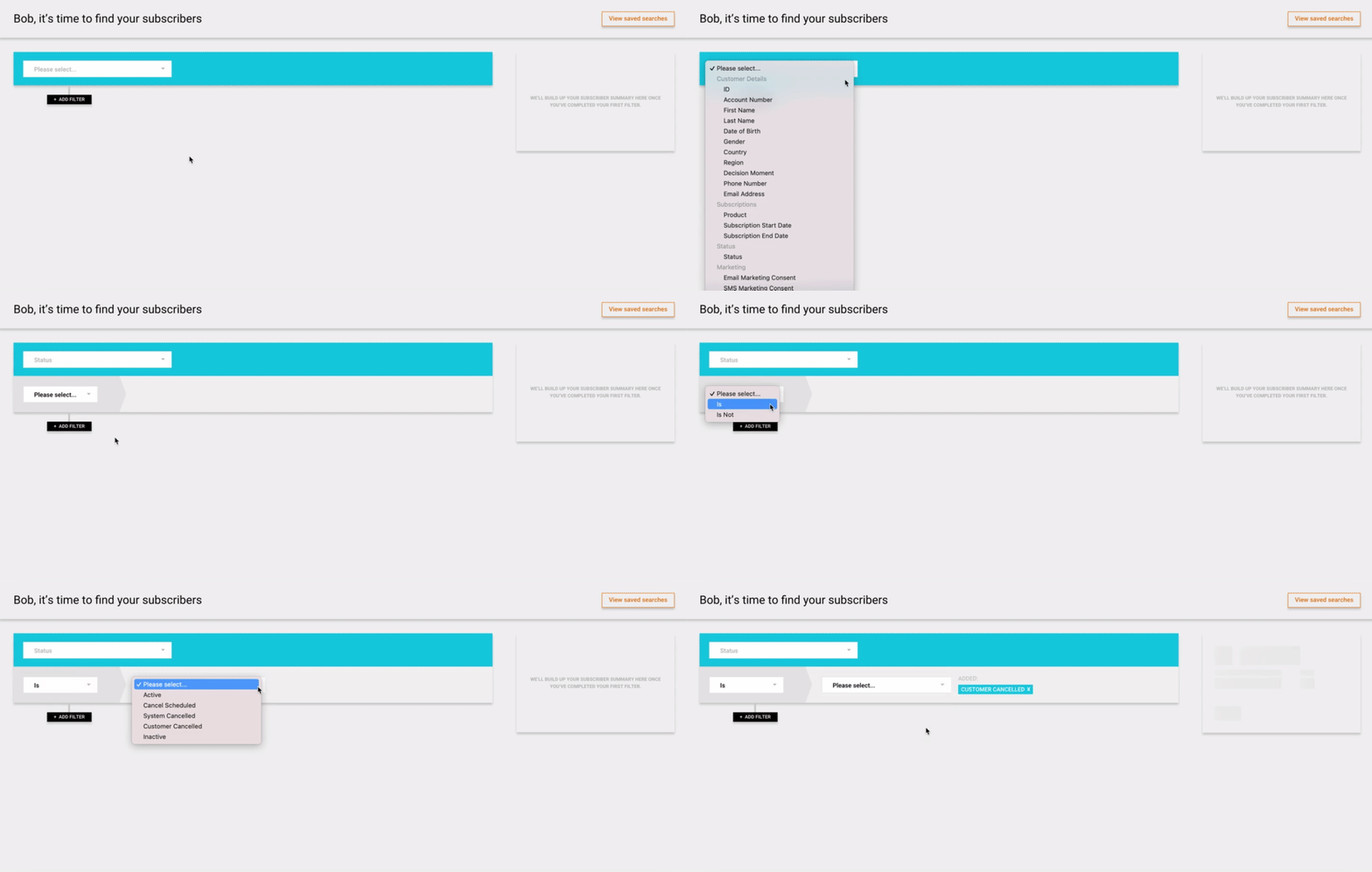
...
By text:
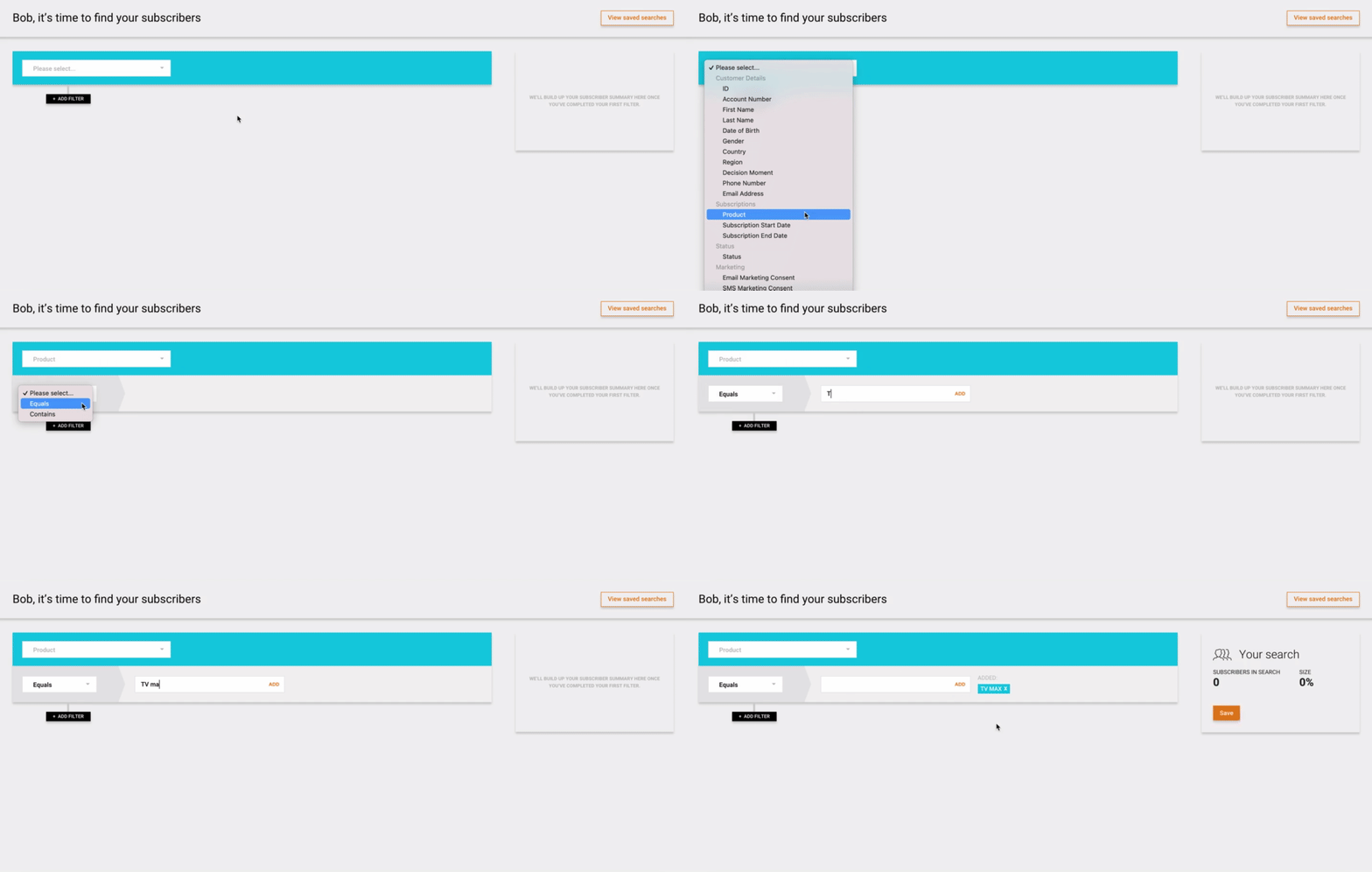
...
By Decision Moment:
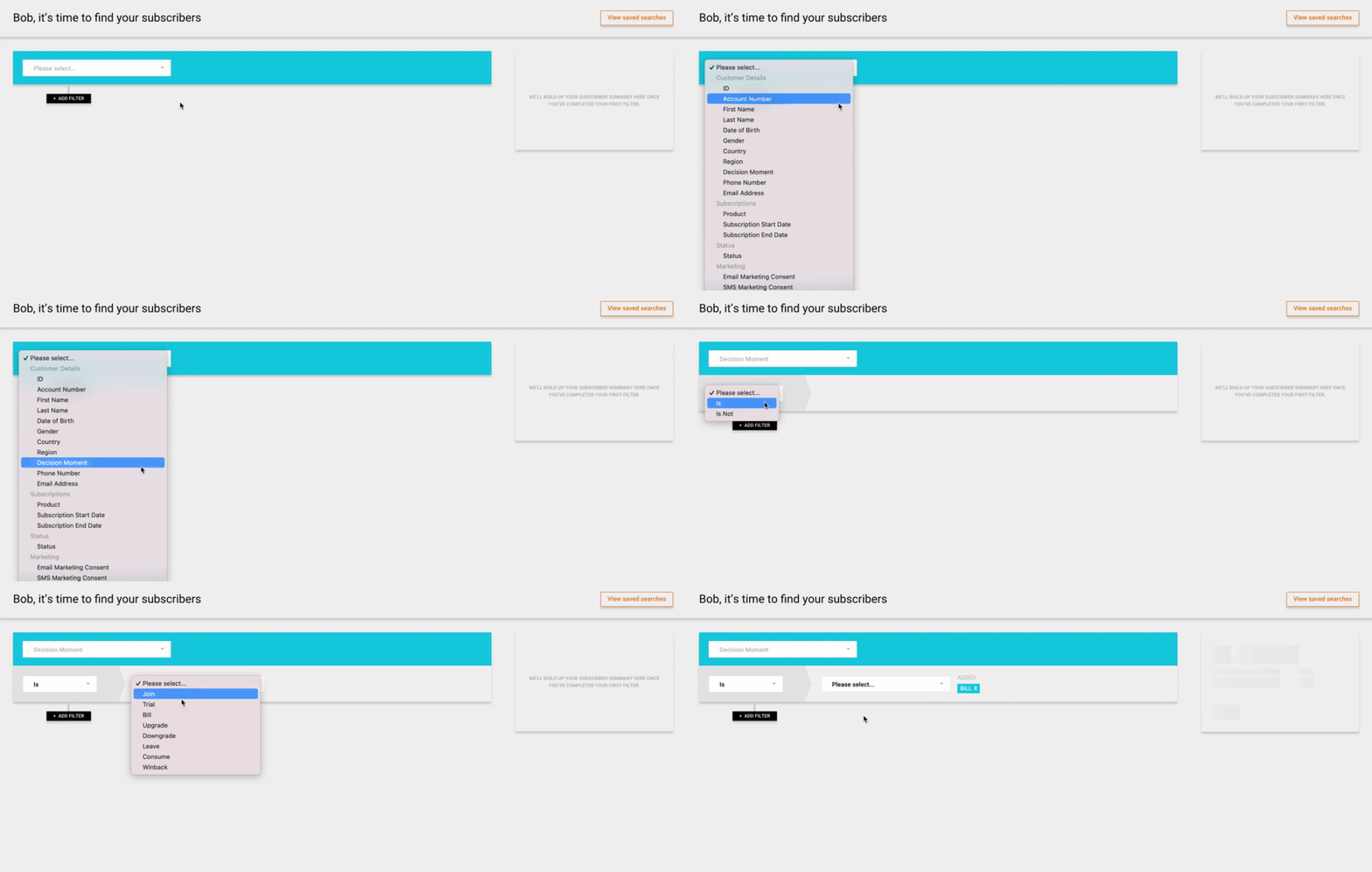
...
You can add as many filters as you wish and after you add a filter, the results of that search will appear on the right-hand side.
An example of this could be that you want to run an Upgrade Campaign via Email and so need to target active customers who are currently in the 'Bill' decision moment and have opted in to Email Marketing:
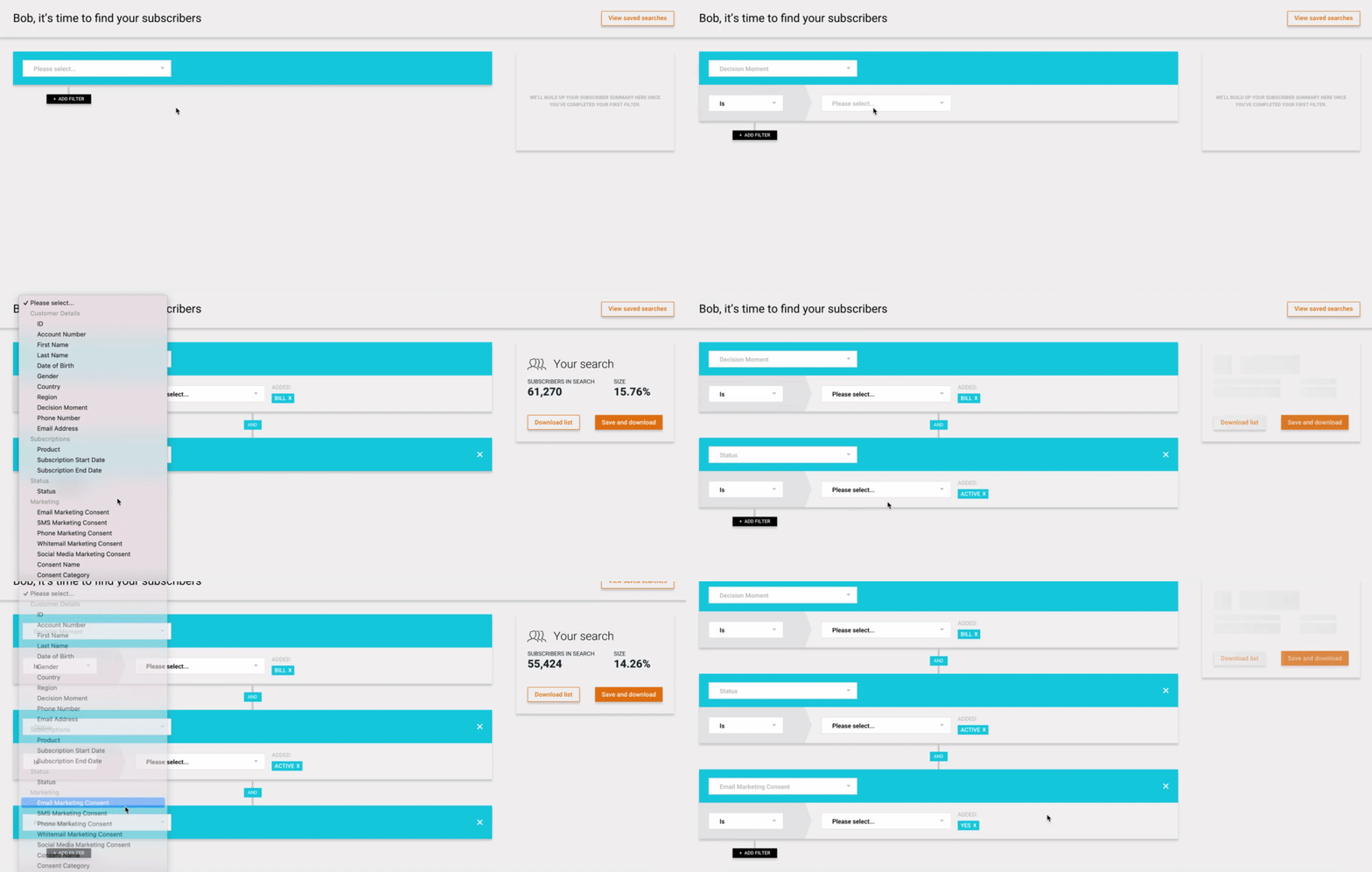
...
Once you've added your filters, you can see the tile on the right hand side has updated to show you the results of that search:
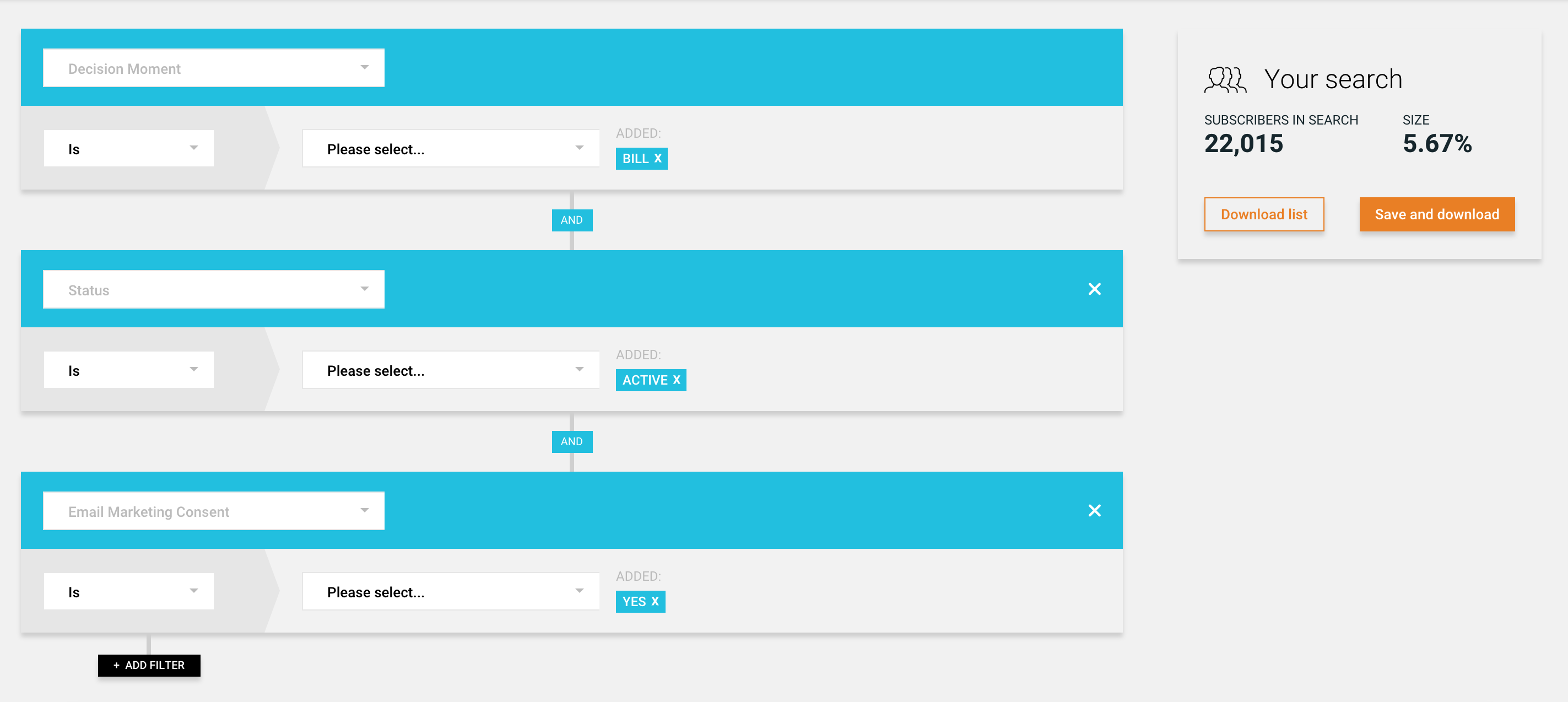
...
'OR' Functionality
Within each of the filters you can specify multiple information to search for.
An example of this would be to search for the Last Name as Smith OR Jones OR Clark. This would search for any accounts with either of those last names.
This is different to searching for each of the last names separately, as doing it separately would search for records that contain all of the last names in a customer account, which would be highly unlikely to filter any accounts.
The 'OR' functionality can be used on any filter and can be used on multiple filters on the same search.
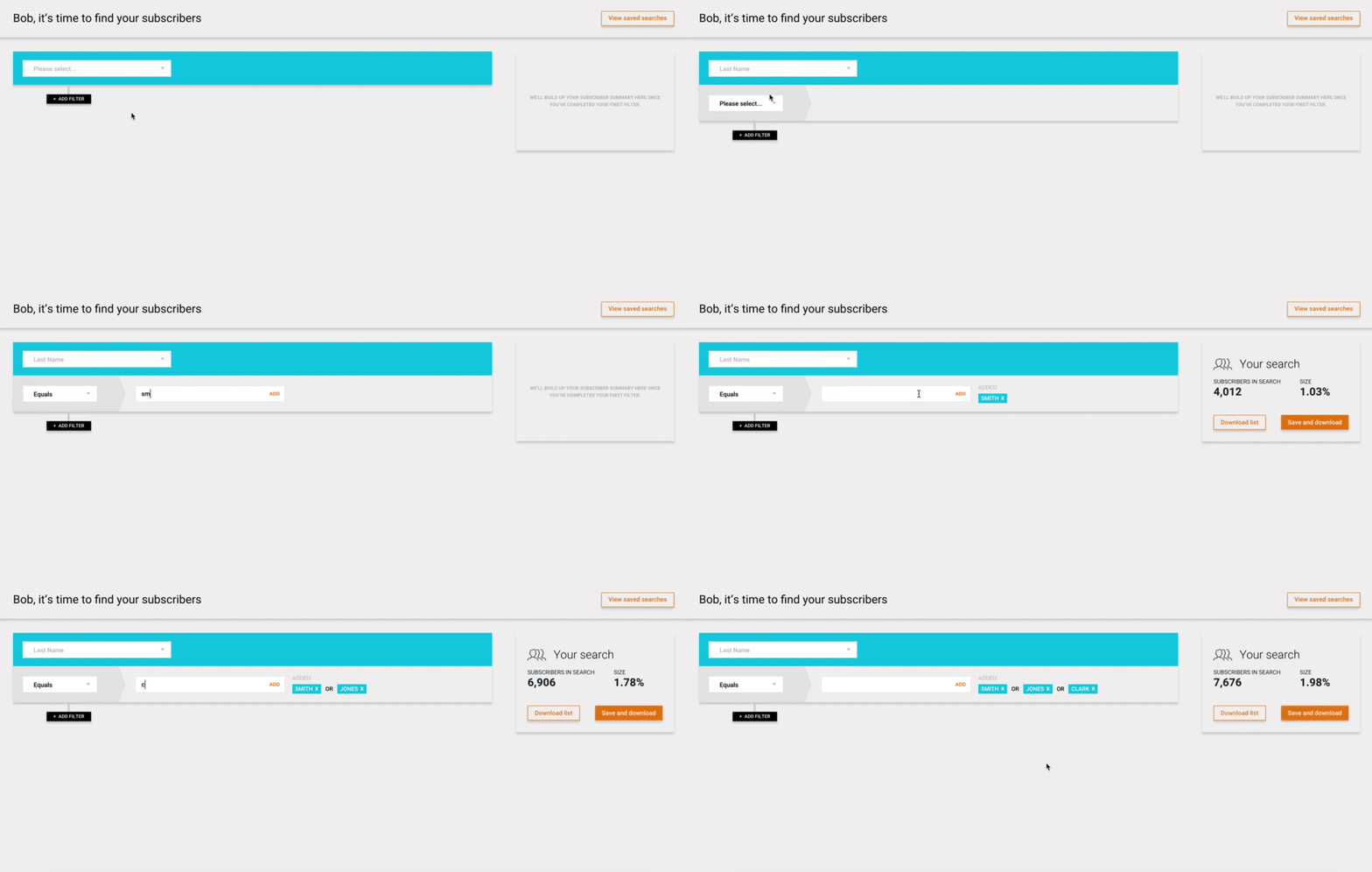
Simply click the 'ADD' button to continue to adding more entries.
Viewing your search result
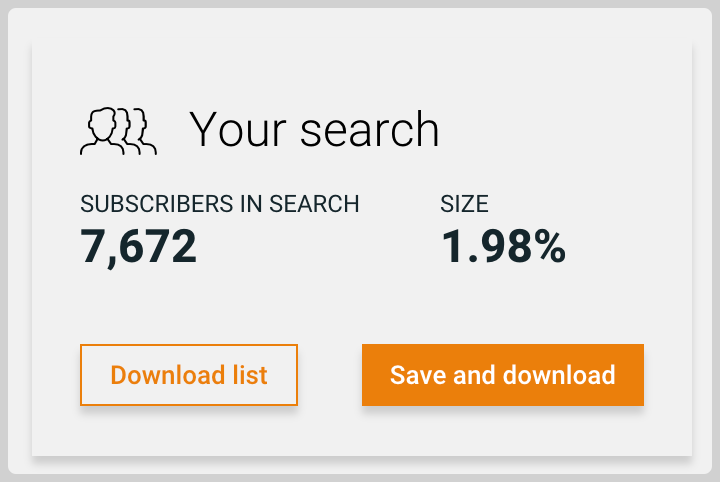
- Once you're happy with your search, you can see on the right-hand side that it will show you the total subscribers in that search as well as what % this is of your subscriber base.
...
You can do two things:

- Download the list as a CSV file.
- Save and download the list. This will not only download the list as a CSV file but will also keep a record of the search so that it can be referenced or used at a future date.
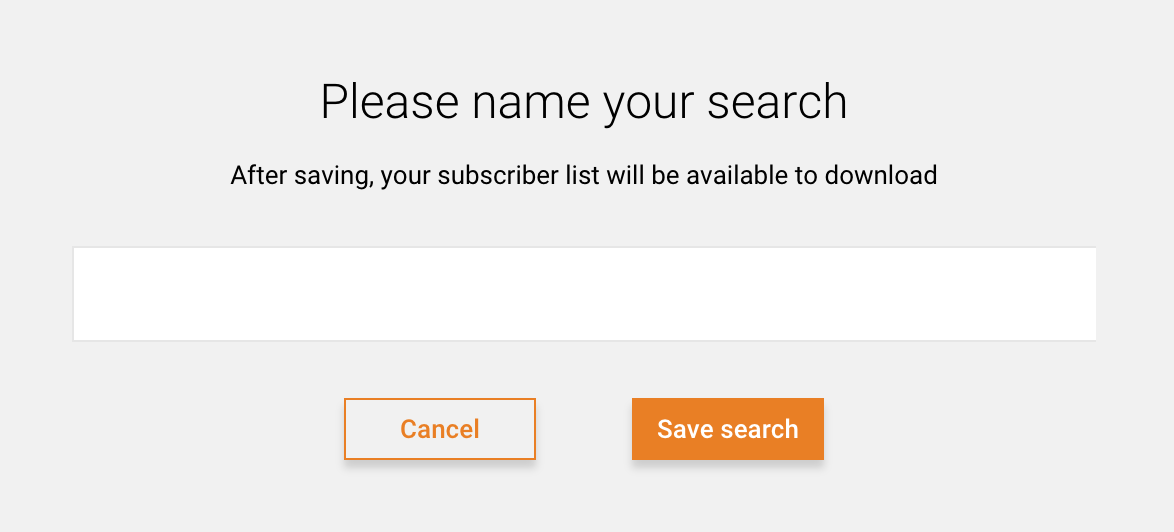
When you click to Save and download, you're presented with:
...
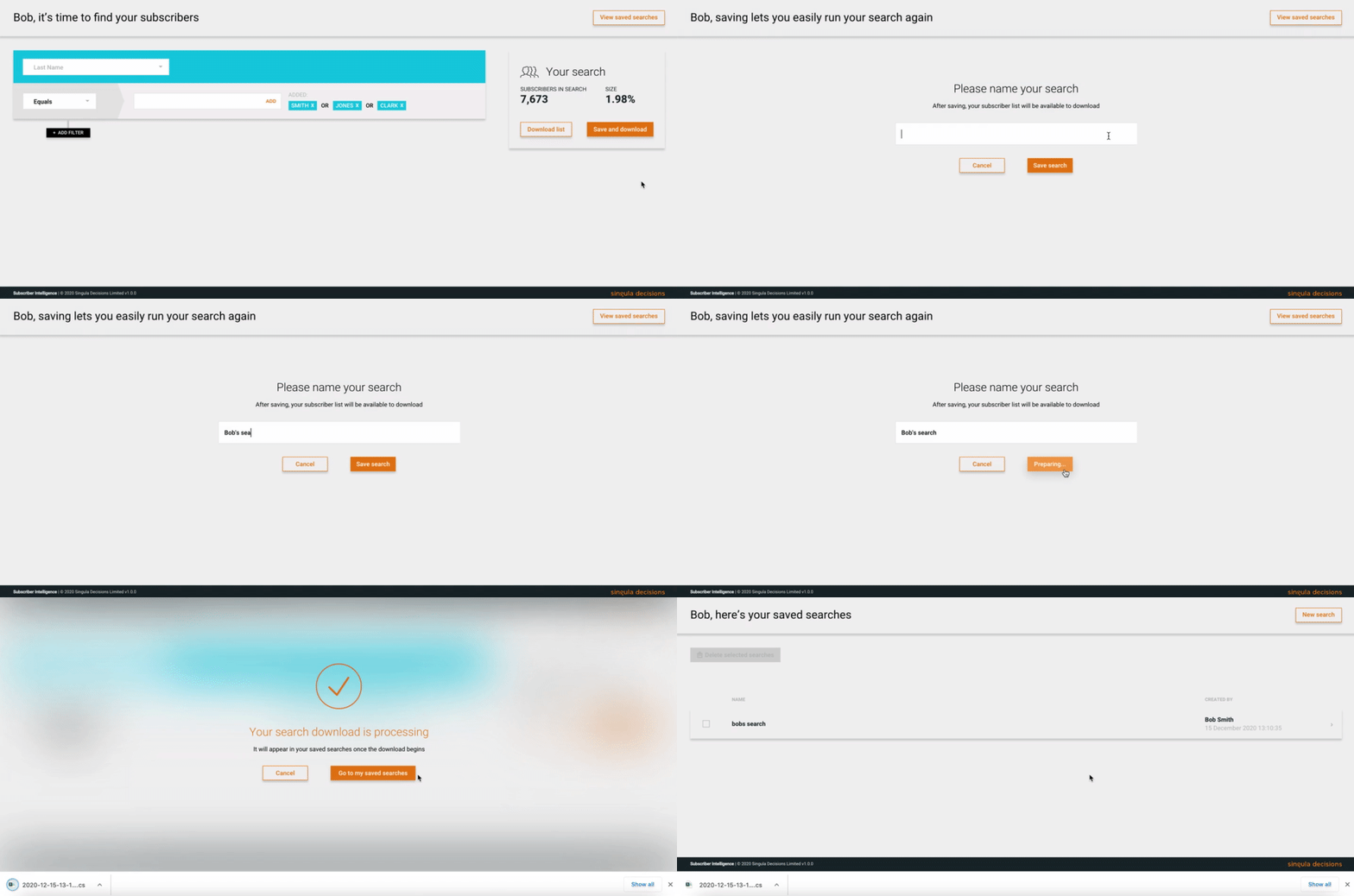
- Name your search and select 'Save search'. This name needs to be unique. Once it has been saved you can then go and access the CSV file, either directly from your device's downloads folder or from the list of searches.
...
- Click onto the the search you have just saved and on the right-hand side is a summary of that search:
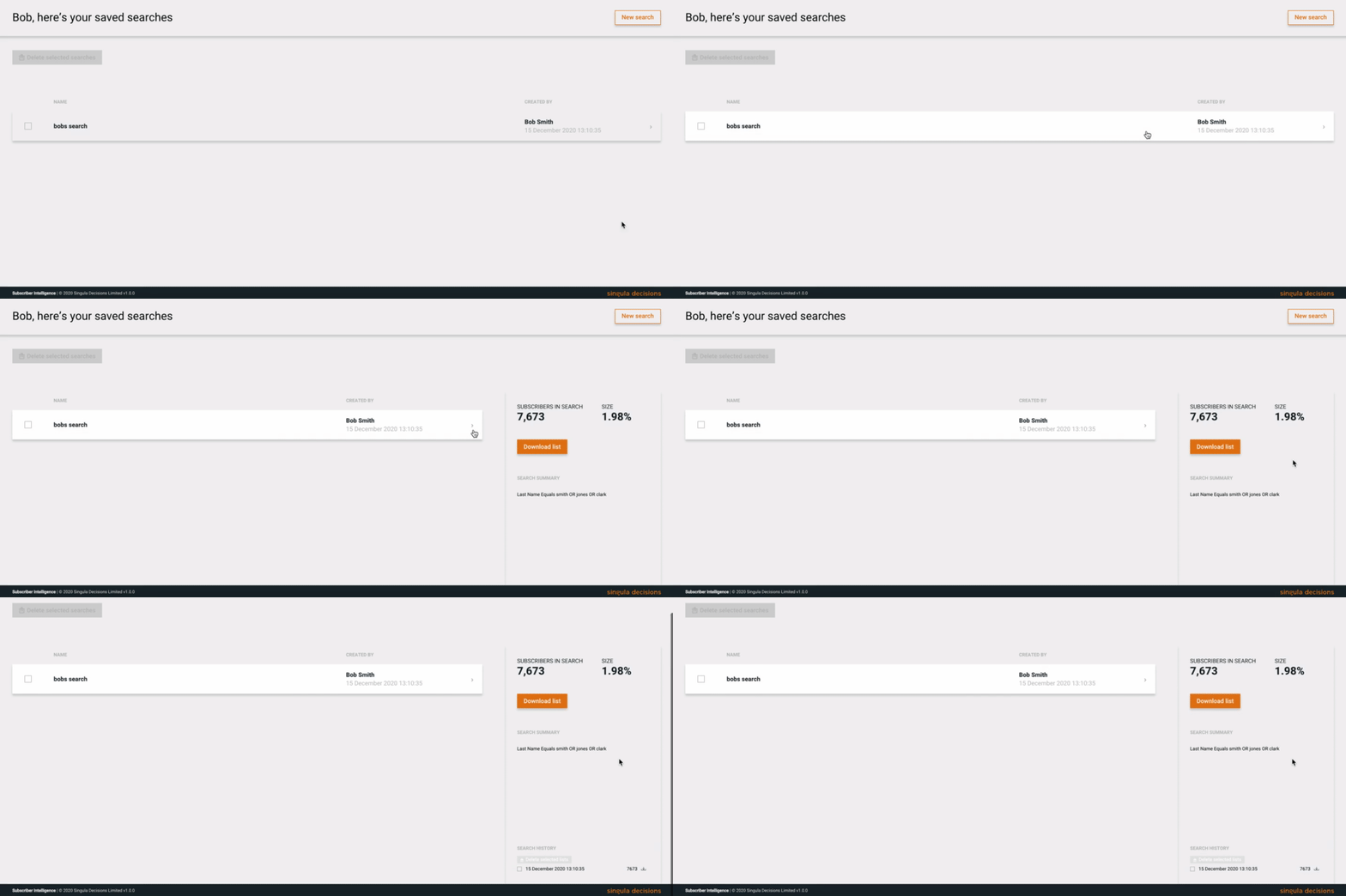
...
Every time you select a saved search, a fresh search will be run using the filters set on it and a real-time result will be presented. If you click on the saved search again or refresh the page this will do a fresh search to create a result and list:
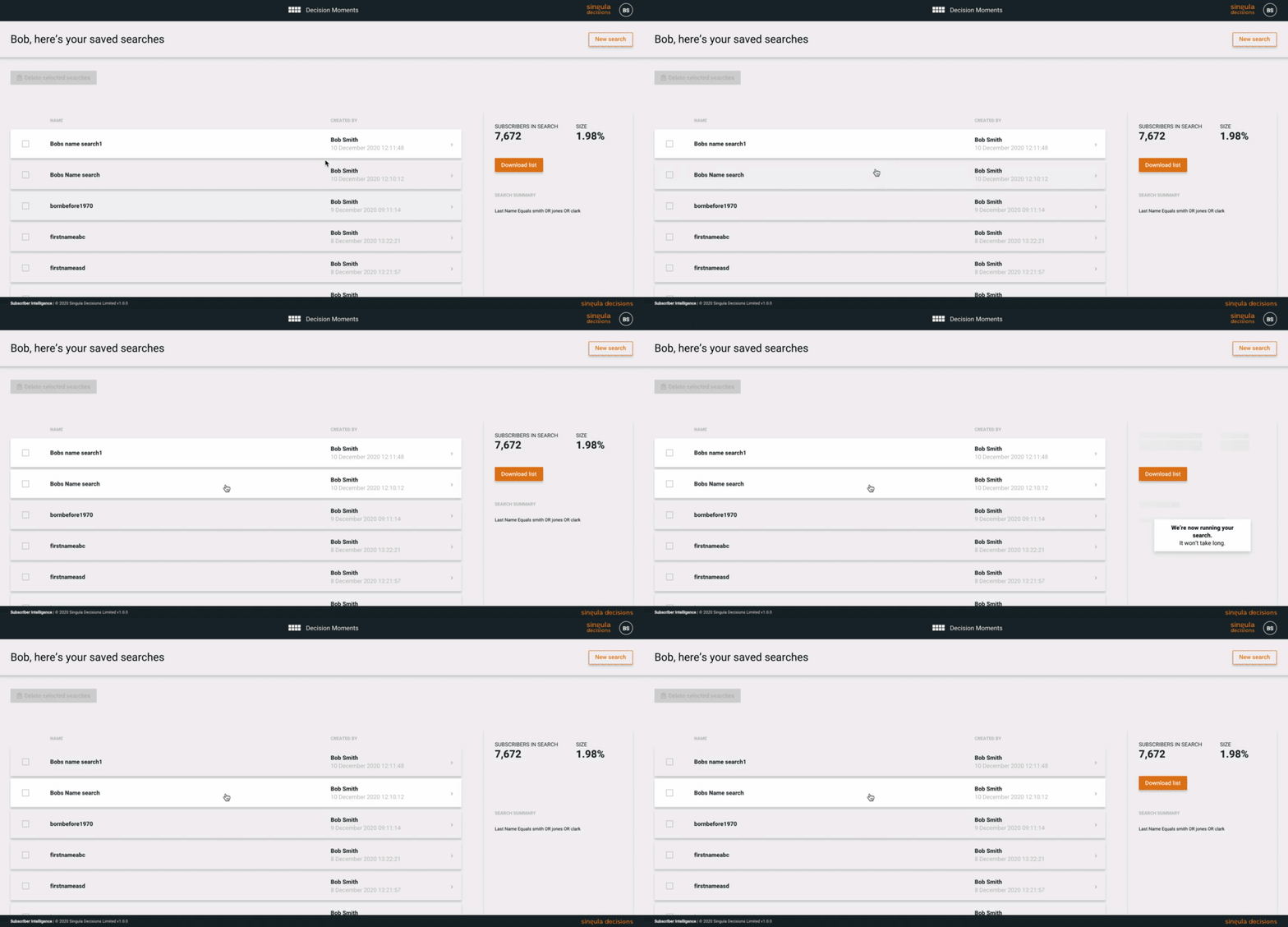
The figures you'll see in that section will always be the latest information and not a historic search result
In this section you can:

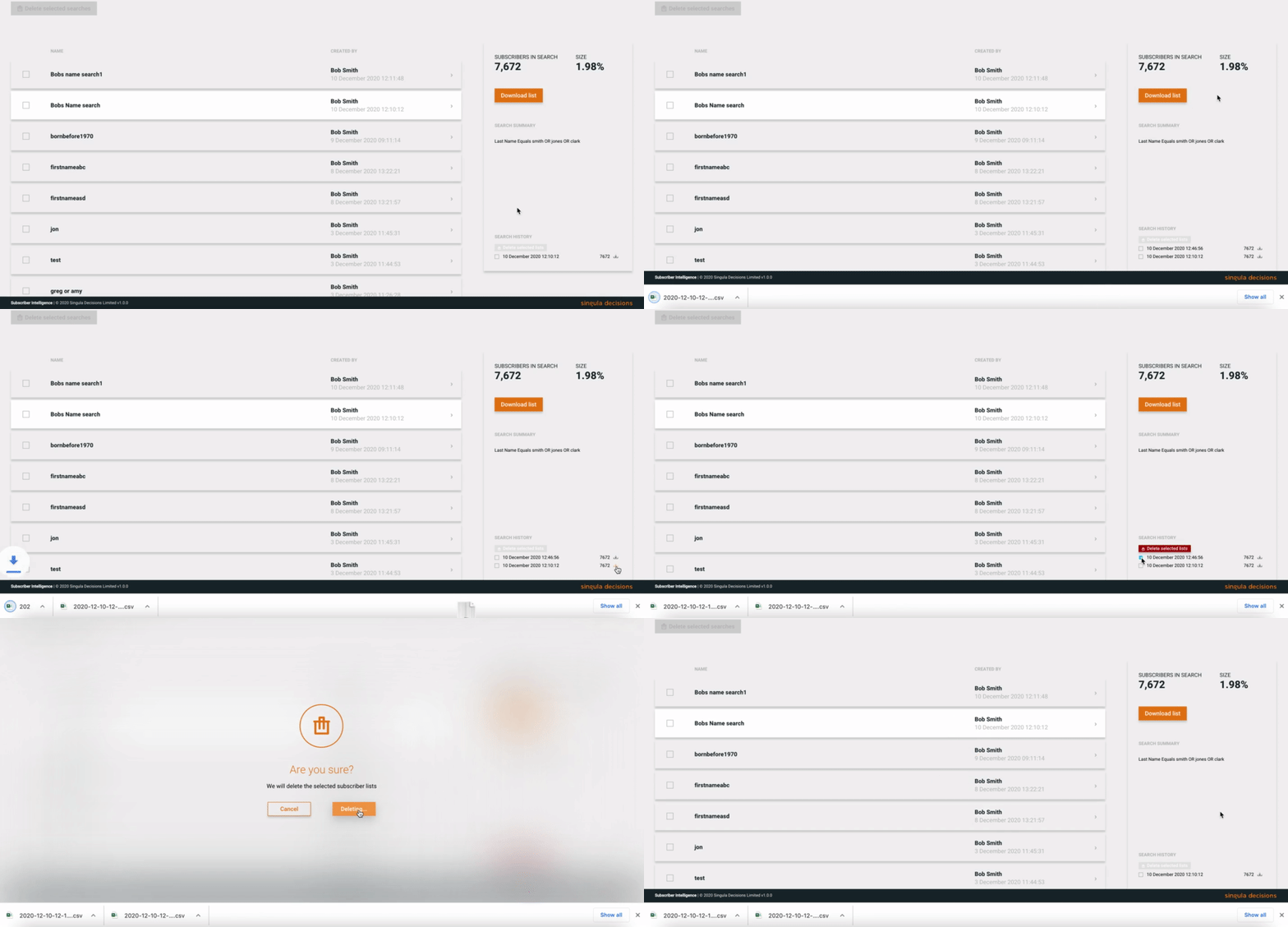
Download the list - this will be a real-time list of that search against the current subscriber base
or
Download a list from a historic search, which can be found under Search History. You can also delete any historic searches within the Search History
View Saved Searches
View saved searches
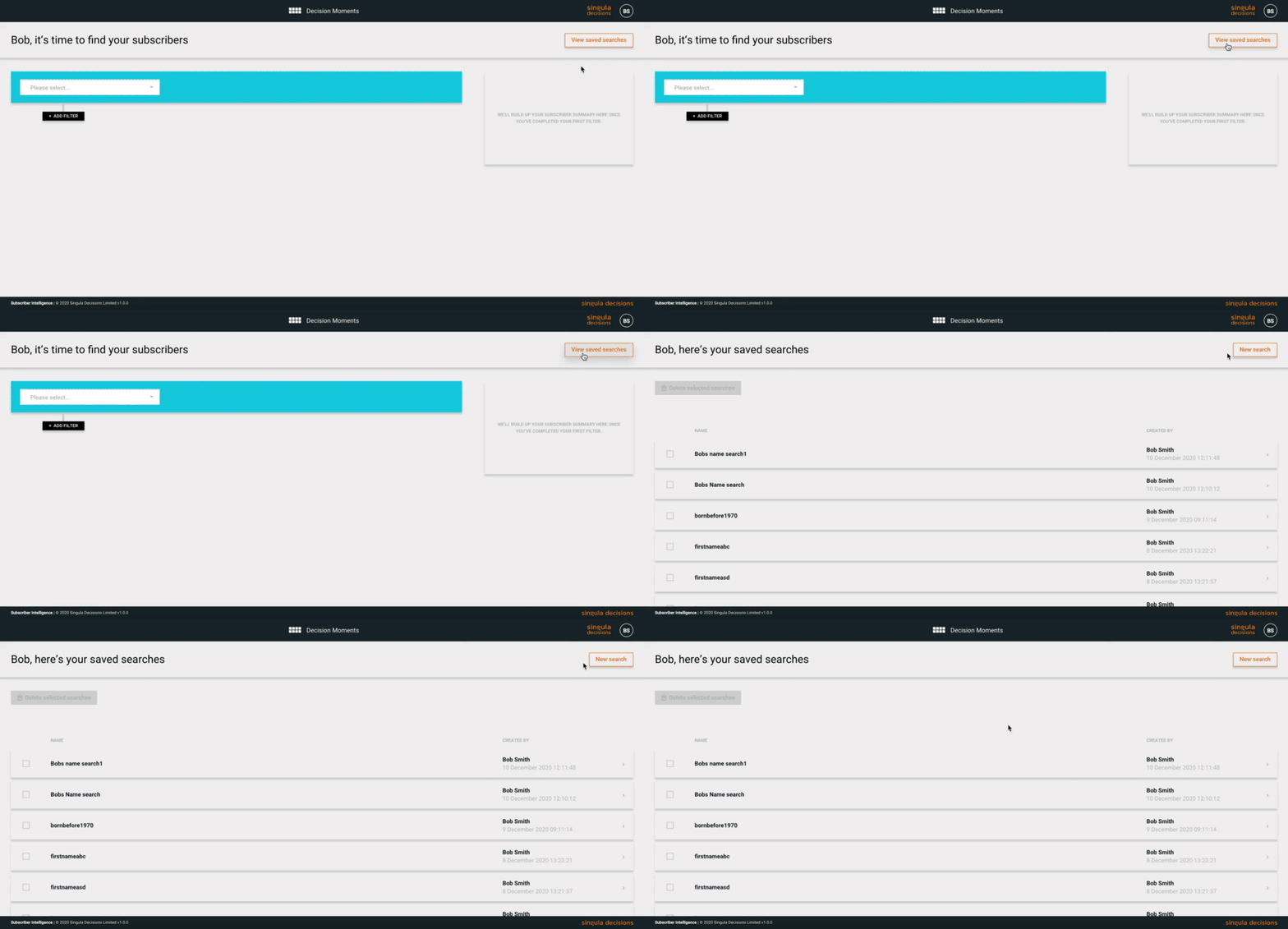
To view any saved searches simply click the button on the top right corner of the screen:
...
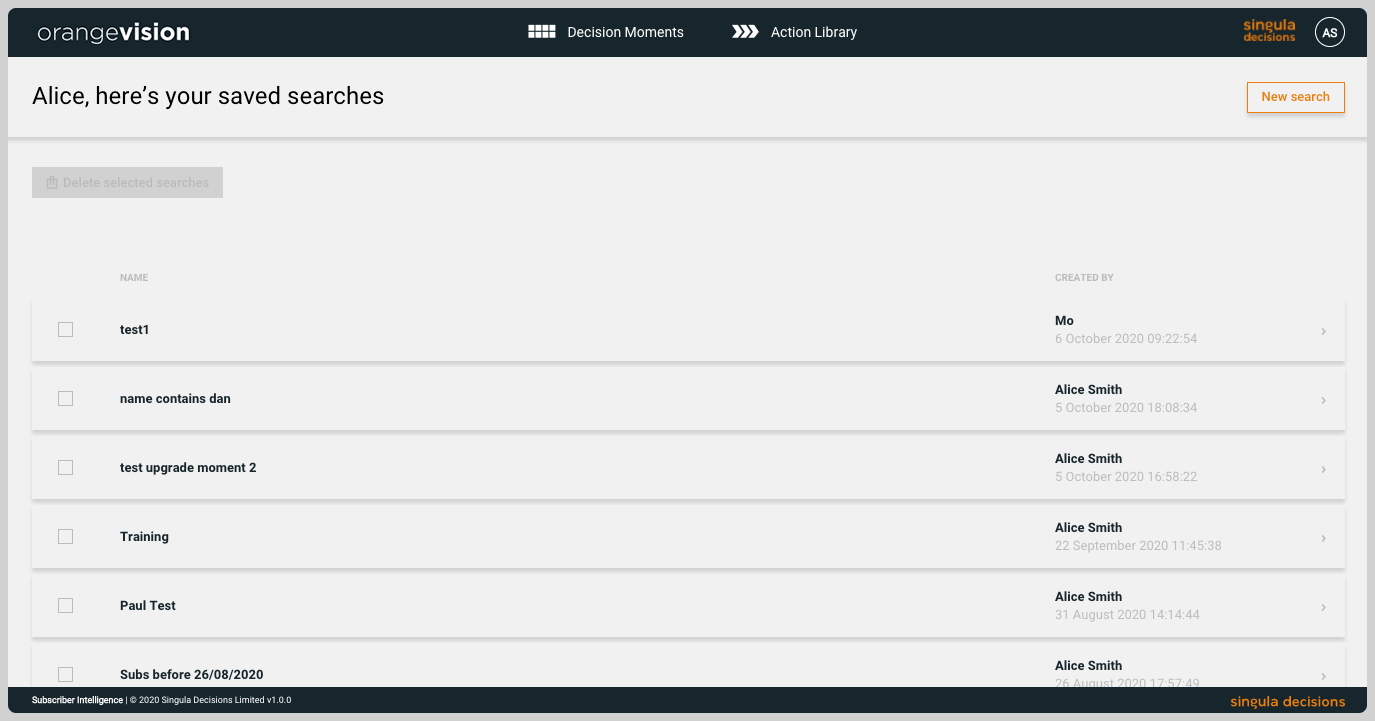
This will present your saved searches:
...
Here you can view a saved search, download a subscriber list from that search including a historic search and delete any saved searches.
Each saved search will have its name and a created by section, detailing who created it and when it was created.
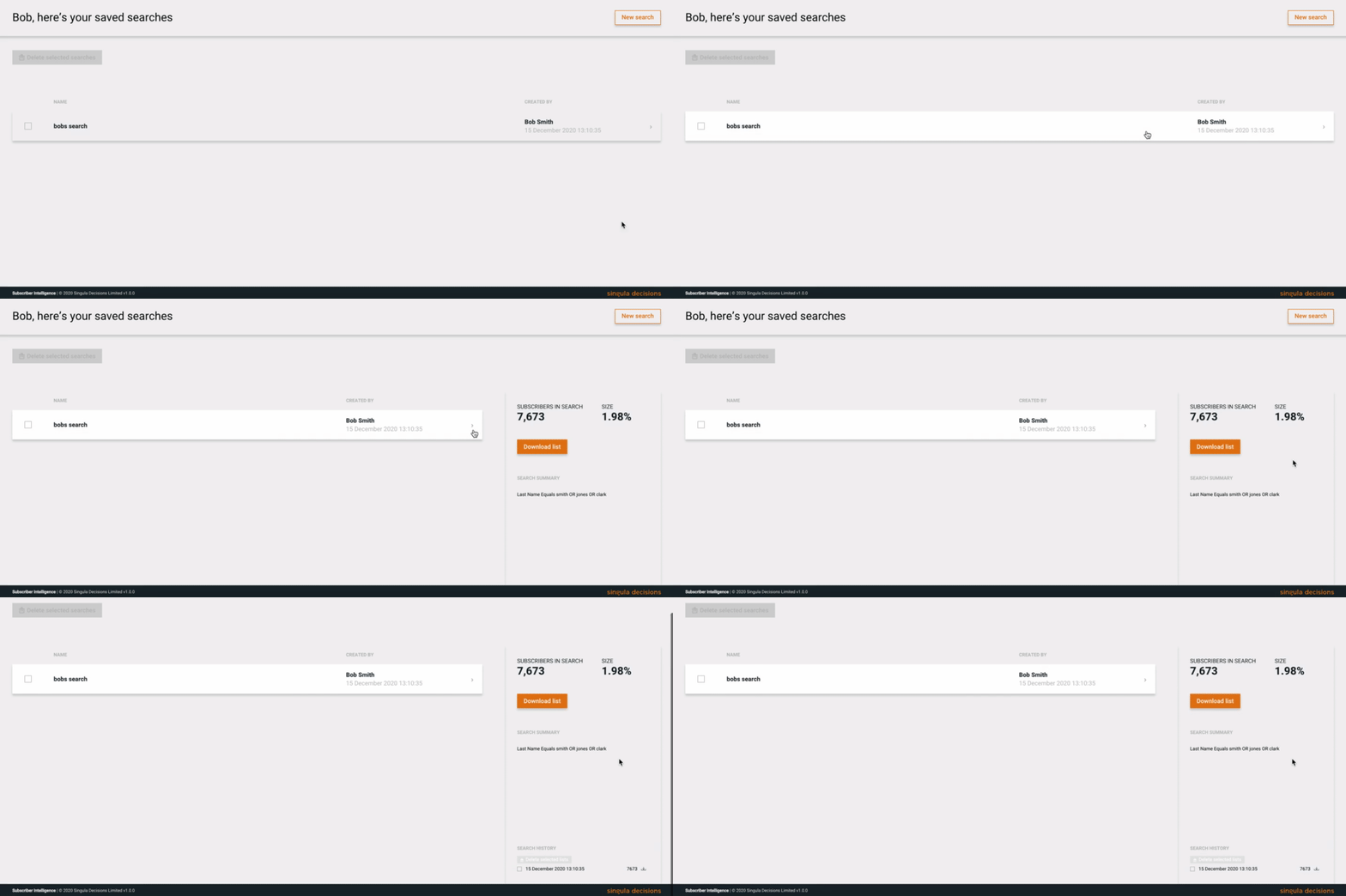
To view a saved search, simply click on it and the then use the right hand box to view details of the search.
...
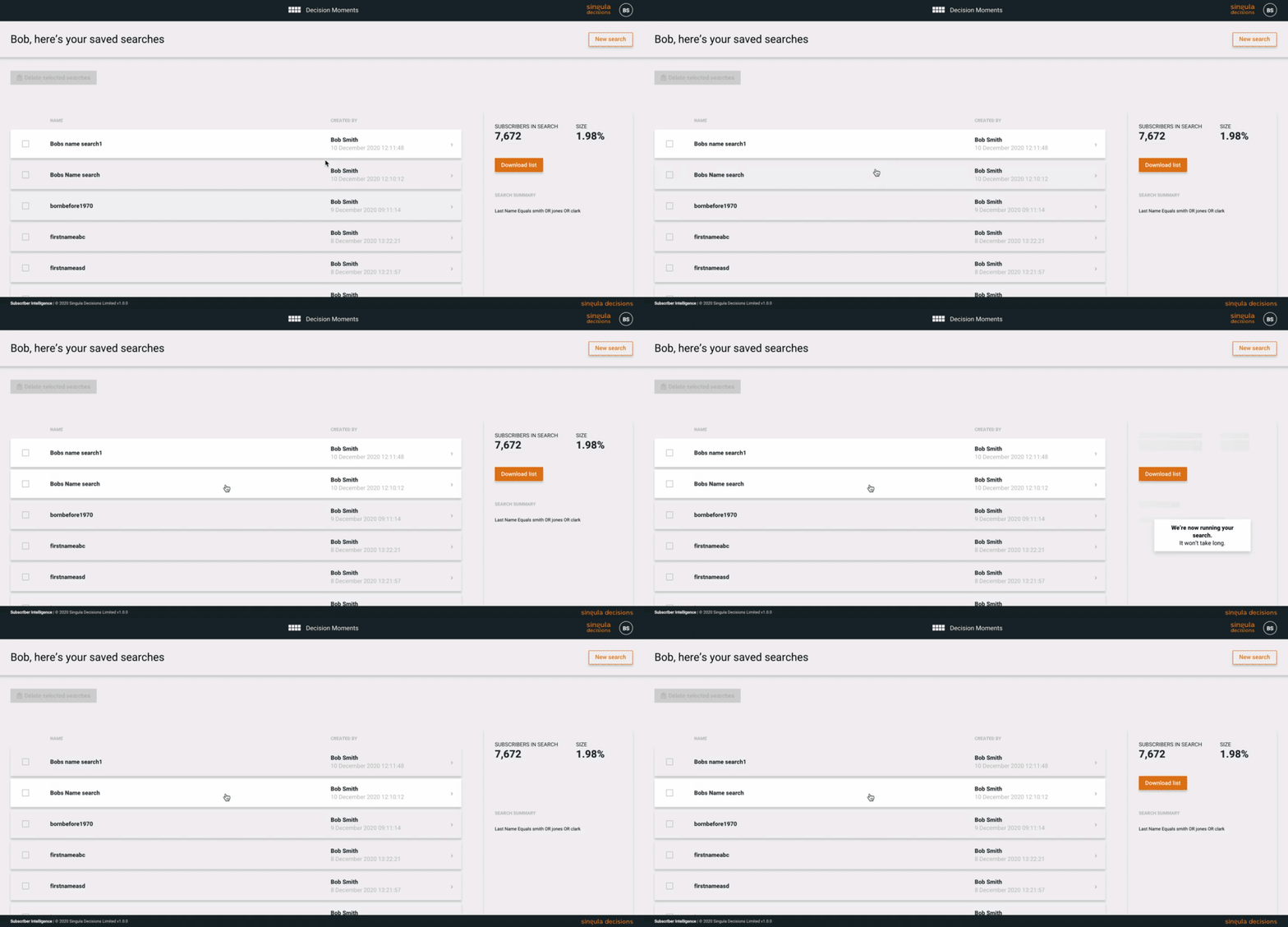
Every time you select a saved search, a fresh search will be run using the filters set on it and a real-time result and list will be presented. If you click on the saved search again or refresh the page this will do a fresh search to create a result and list.

...
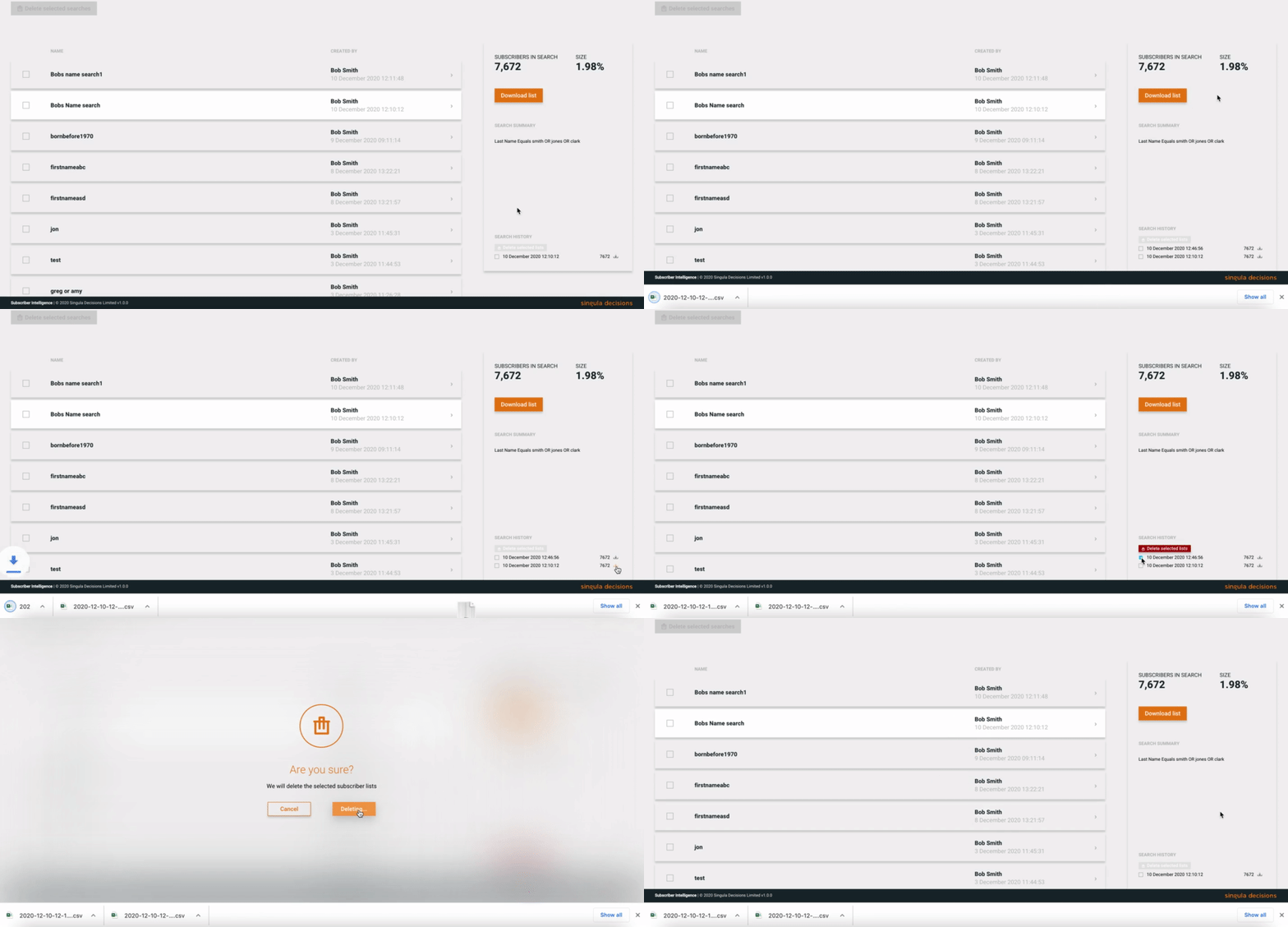
You can then:

- View a summary of the search
- Download the latest list
- Download a historic list
- Delete a historic list
Filter Descriptions
Filter Descriptions
Customer Details:
| Filter | Description |
|---|---|
| ID | A globally unique ID assigned to the contact record by Subscriber Intelligence |
| Account Number | The client's source CRM reference for the contact record |
| First Name | The first name on the contact record |
| Last Name | The last name on the contact record |
| Date of Birth | The date of birth on the contact record |
| Gender | The gender on the contact record |
| Country | The country of residence on the contact record |
| Region | The region of the country of residence on the contact record |
| Decision Moment | The current decision moment assigned to the contact record |
| Phone Number | The registered phone number on the contact record |
| Email Address | The registered email address on the contact record |
Subscriptions:
| Filter | Description |
|---|---|
| Product | The product the customer has purchased or subscribed to |
| Subscription Start Date | The earliest activation date of all subscription packages associated with the contact record |
| Subscription End Date | The latest cancellation date of all subscription packages associated with the contact record |
Status:
| Filter | Description |
|---|---|
| Status | The status field on the contact record (Active, Customer Cancelled, System Cancelled and Cancel Scheduled) |
Marketing:
| Filter | Description |
|---|---|
| Email Marketing Consent | The marketing consent field on the contact record (Yes/No) |
| SMS Marketing Consent | The SMS consent field on the contact record (Yes/No) |
| Phone Marketing Consent | The phone consent field on the contact record (Yes/No) |
| Whitemail Marketing Consent | The customer has opted in/out for whitemail marketing |
| Social Media Marketing Consent | The customer has opted in/out for social media marketing |
| Consent Name | The name of a specific consent |
| Consent Category | The name of a specific consent category |
| Consent | Implicit consent (base level for RTV) |
Updated over 1 year ago