

Decision Moments Dashboard
Decisions Moments Dashboard is your high-level view of how your Subscription business is performing.
What's available on the Decision Moments Dashboard?
What's available on the Decision Moments Dashboard?
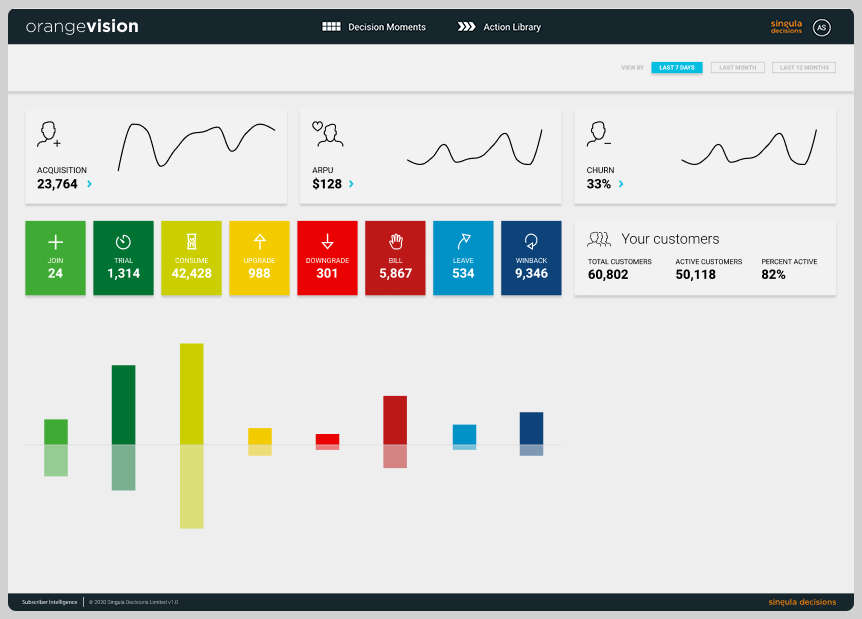
On the Dashboard you're presented with high-level analysis and insight into your customer subscription base.
...
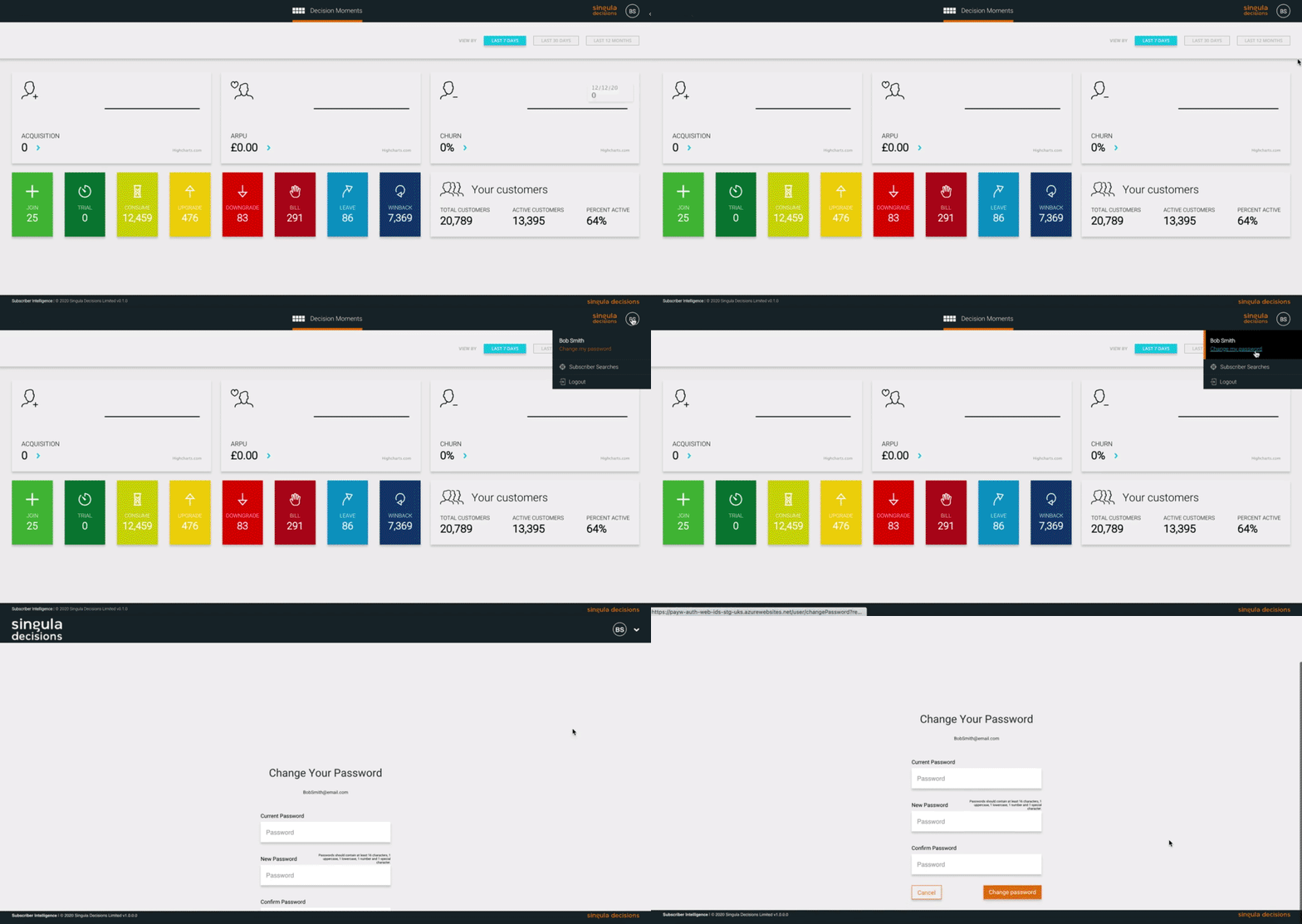
You can change your password, logout or launch Subscriber Searches by simply hovering above your profile icon on the top right-hand corner and clicking on each of the options:
...
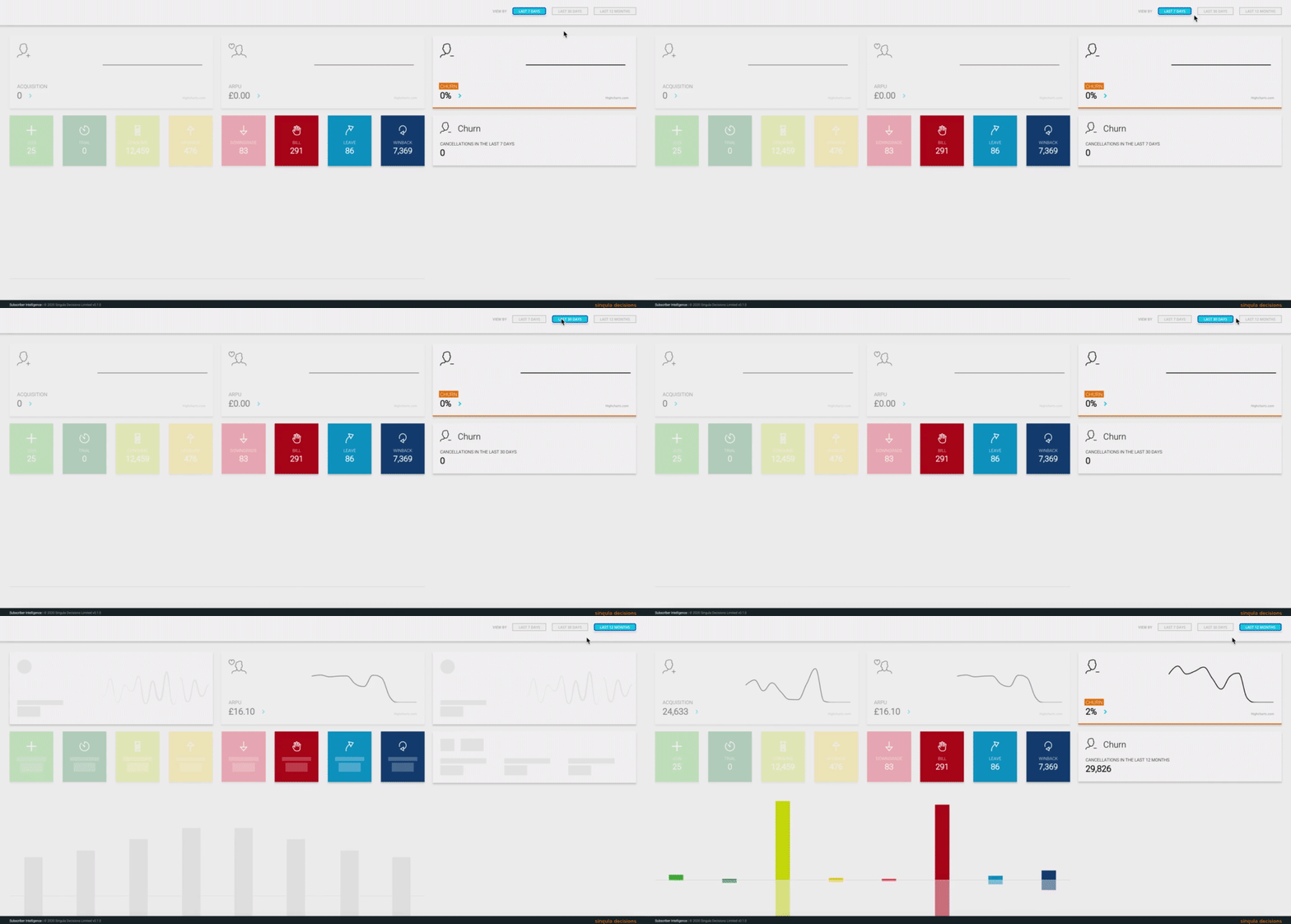
When looking at the Dashboard, one of the first things you'd want to do is select the time period for the data you want to see.
This is done on the top-right of the screen and you can view by:

- Last 7 Days
- Last 30 Days
- Last 12 months
Once this is selected you'll be presented with the customer subscription data relevant to that period.
...
The three tiles at the top give a high level view of the number of your customer's that fall into 3 categories:
- Acquisition
- ARPU - Average Revenue Per User
- Churn
You'll find a visual breakdown of the real-time number of your customers within each Decision Moment along with a tile displaying information about your total subscriber base:
Decision Moments Bar Chart
Decision Moments Bar Chart
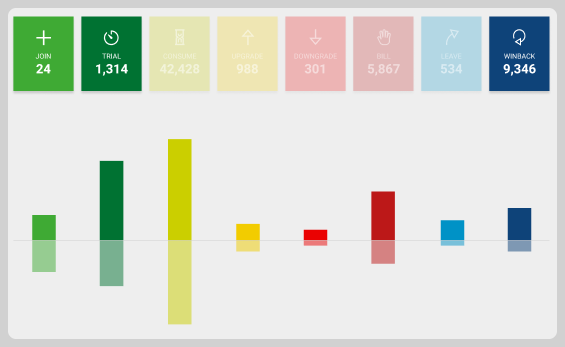
The Bar Chart presents the movement of your customer base within each Decision Moment:
...
There are 8 Decision Moments and the bar chart displays each of these in their own colour and shows visually the movement to and from each of them.
Join
Trial
Consume
Bill
Upgrade
Downgrade
Leave
Winback
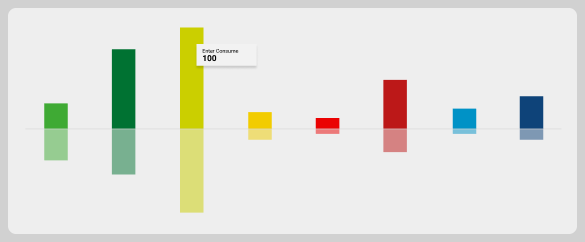
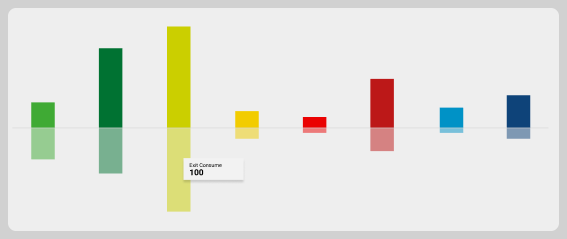
To view the detailed numbers on movement to and from a Decision Moment, simply hover over the Decision Moment bar.
The top half shows number of customers who have entered into that Decision Moment:
...
The bottom half shows the numbers who have left that Decision Moment:
...
Even just visually looking at the Decision Moments bar chart it paints a picture of what is happening with your customers and then allows you to instantly get the movement in customers by hovering over the individual bars.
Looking closer at Acquisition, ARPU and Churn
Looking closer at Acquisition, ARPU and Churn
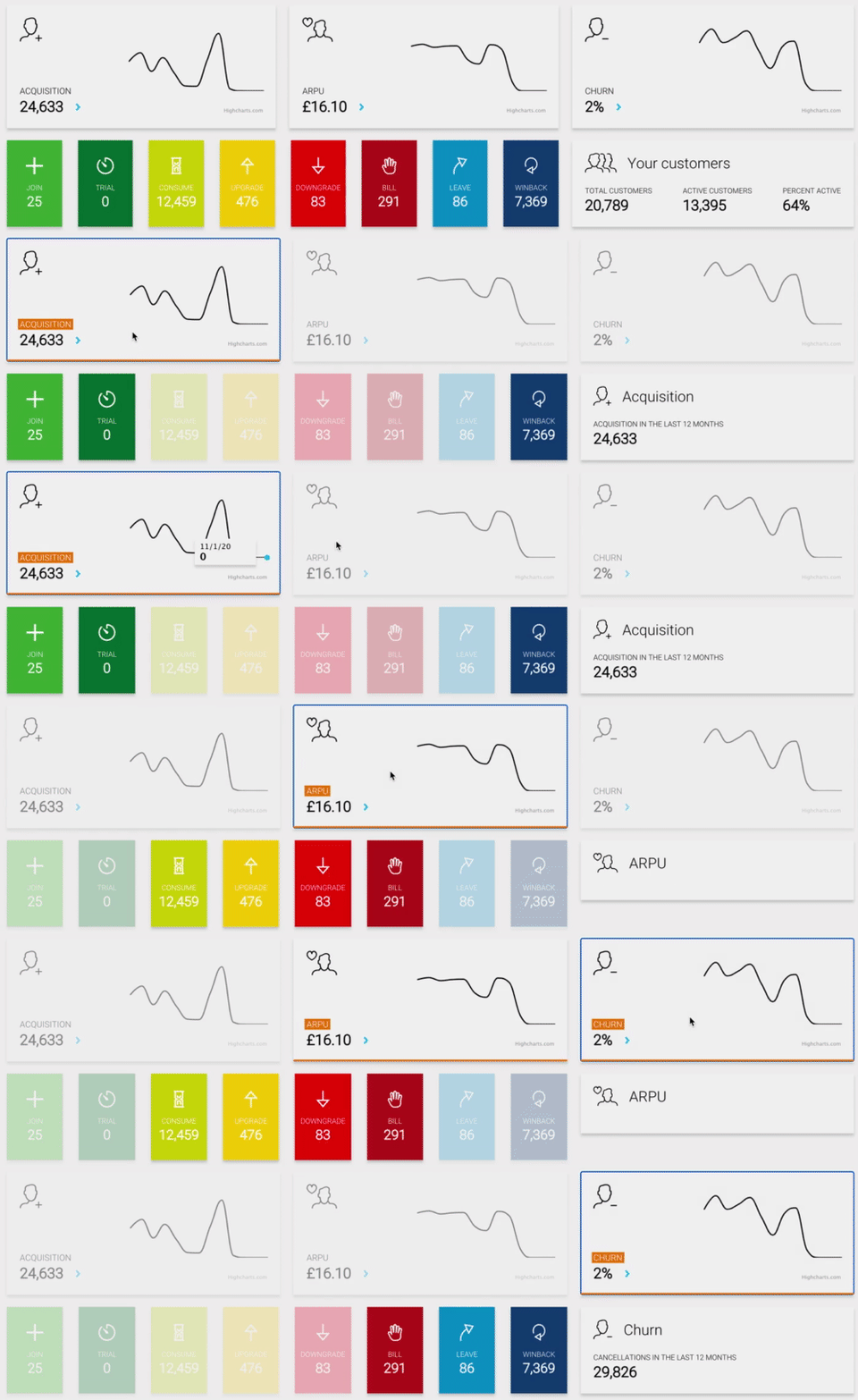
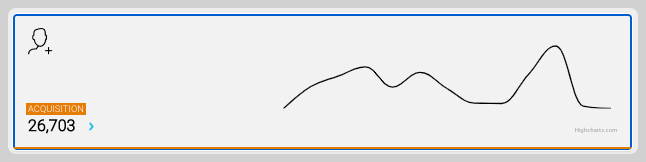
1. Acquisition - This shows how many new Subscribers you have obtained in the selected Time Period.
You'll see the total, along with a visual graph showing this value over the selected time period:
...
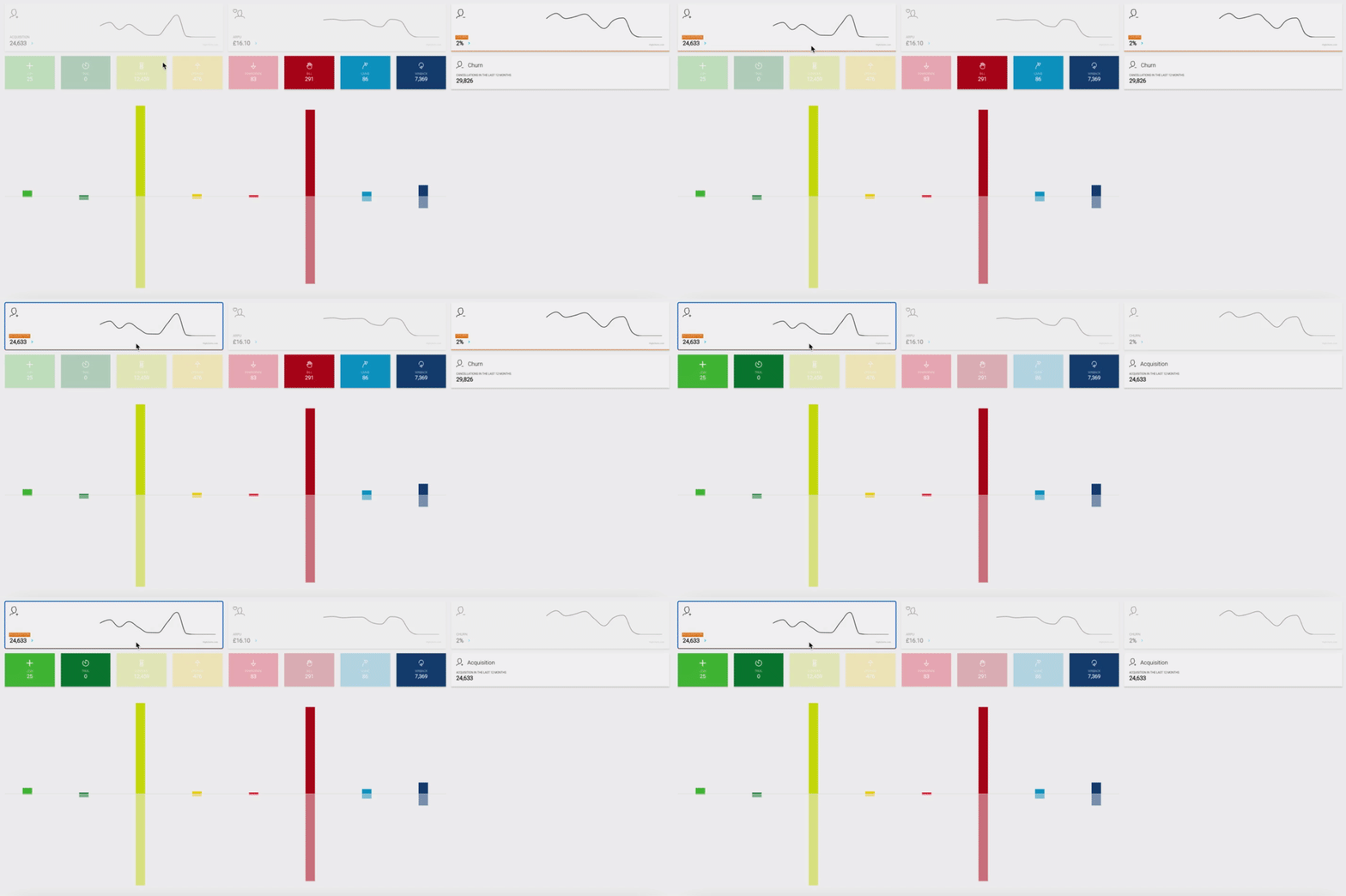
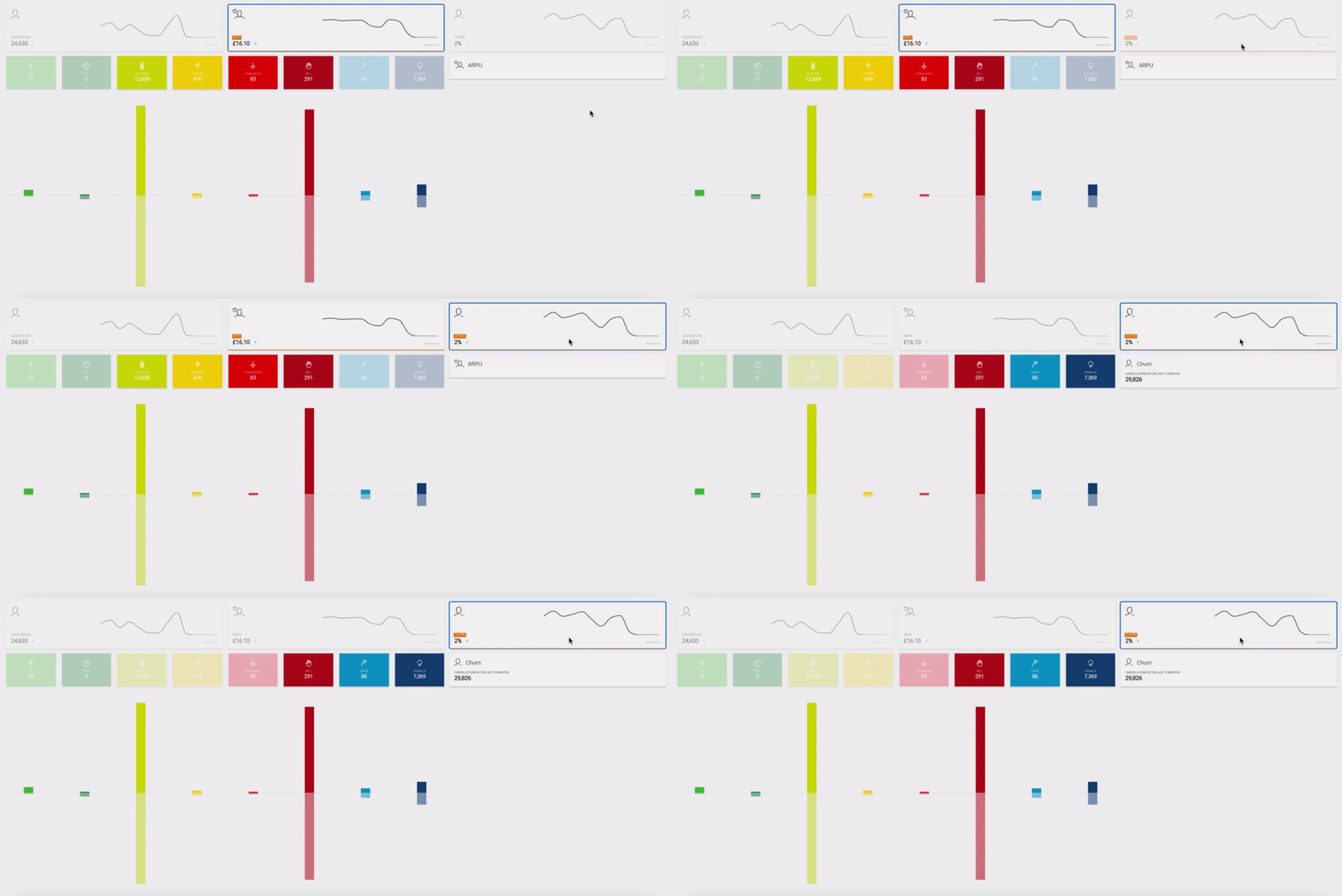
The Decision Moments impacted by Acquisition will be highlighted when you click on the Acquisition card. The bars will shift depending on your Subscriber movements in the selected time period.
...
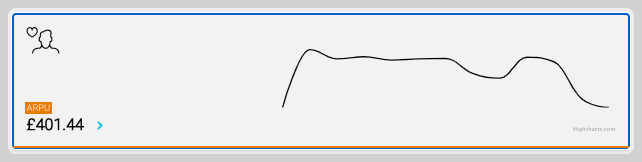
2. Average Revenue Per User (ARPU) - This shows the total average revenue you get from each of your active and paying subscribers over the selected time period.
You'll see the total average value in your most commonly used currency along with a visual graph showing the movement of the value over the selected time period:
...
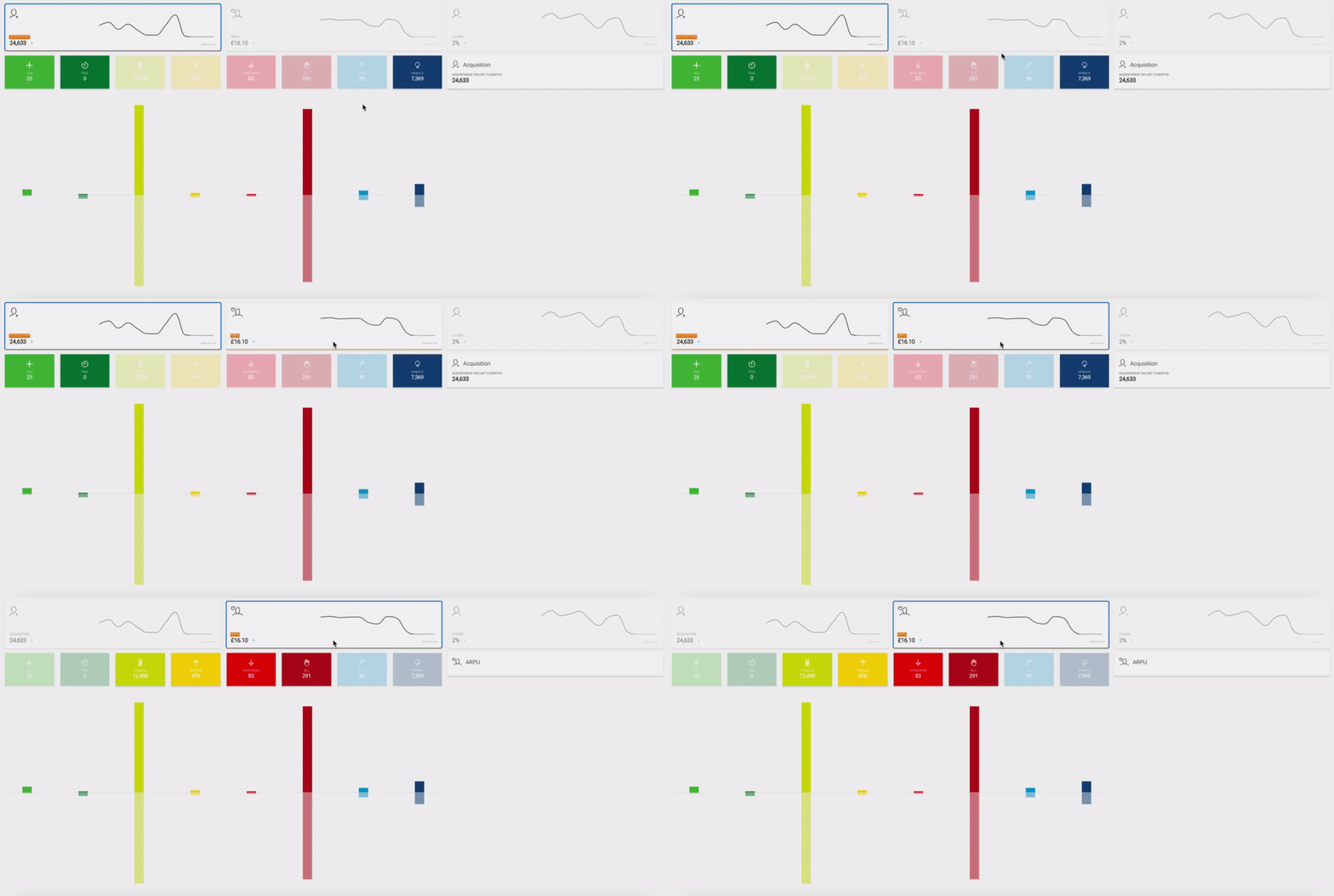
The Decision Moments impacted by ARPU will be highlighted when you click on the ARPU card. The bars will shift depending on your Subscriber movements in the selected time period.
...
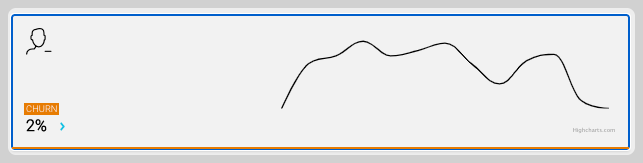
3. Churn - This shows the percentage of your customer's who have cancelled their subscriptions and are no longer paying for any subscriptions or experiencing a Trial period.
You'll see the percentage of churn for your customer base along with a visual graph showing the movement over the selected time period:
...
The Decision Moments impacted by Acquisition will be highlighted when you click on the Acquisition card. The bars will shift depending on your Subscriber movements in the selected time period.
...
Updated over 1 year ago